Getting Started with Answer Sheet Generation
The Edgion AI Answer Sheet Generator allows you to create custom multiple-choice answer sheets that you can print on standard 8.5 × 11-inch paper and distribute to your students. These sheets are designed to work seamlessly with our Scoring Module for automated grading.
What you'll learn: How to create a custom answer sheet with your subject name, number of questions, and answer options, then download or email the PDF.
Step-by-Step Guide
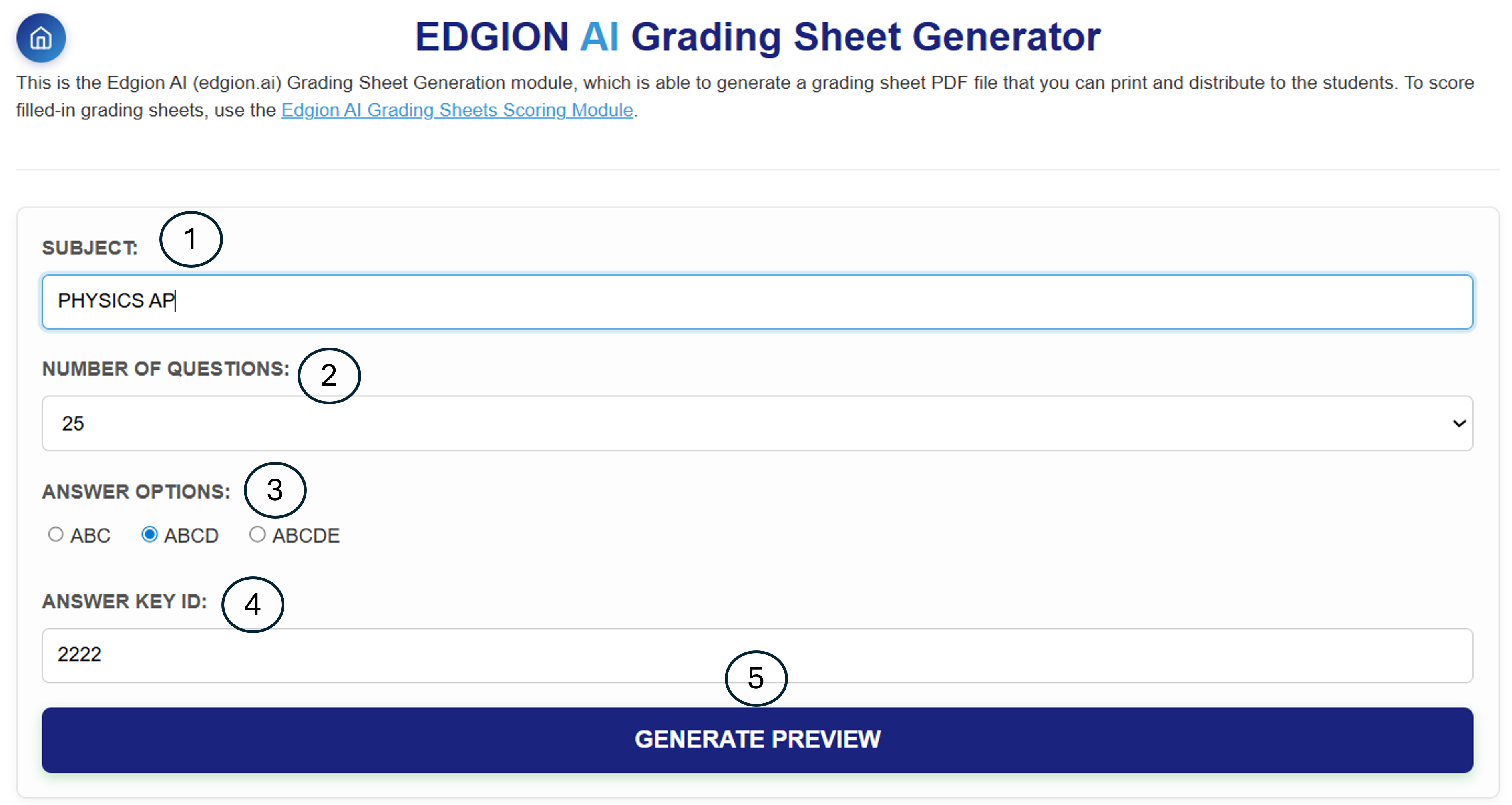
Steps 1-5: Fill out the answer sheet form
Type your subject name in the Subject field (e.g., "PHYSICS AP", "MATH 101", "HISTORY").
This will appear at the top of the answer sheet so students know which test it's for.
Use the dropdown to select the number of questions on your test (5 to 50 questions).
The answer sheet will automatically generate the correct number of answer bubbles.
Select the answer format for your test:
- ABC - 3 choices per question
- ABCD - 4 choices per question (most common)
- ABCDE - 5 choices per question
Enter a 4-digit Answer Key ID (e.g., 2222). This ID links the answer sheet to the answer key you'll create in the Scoring Module.
💡 Tip: Remember this ID! You'll need it when creating the answer key and when scoring the completed sheets.
Click the "GENERATE PREVIEW" button to see what your answer sheet will look like.
Review Your Answer Sheet
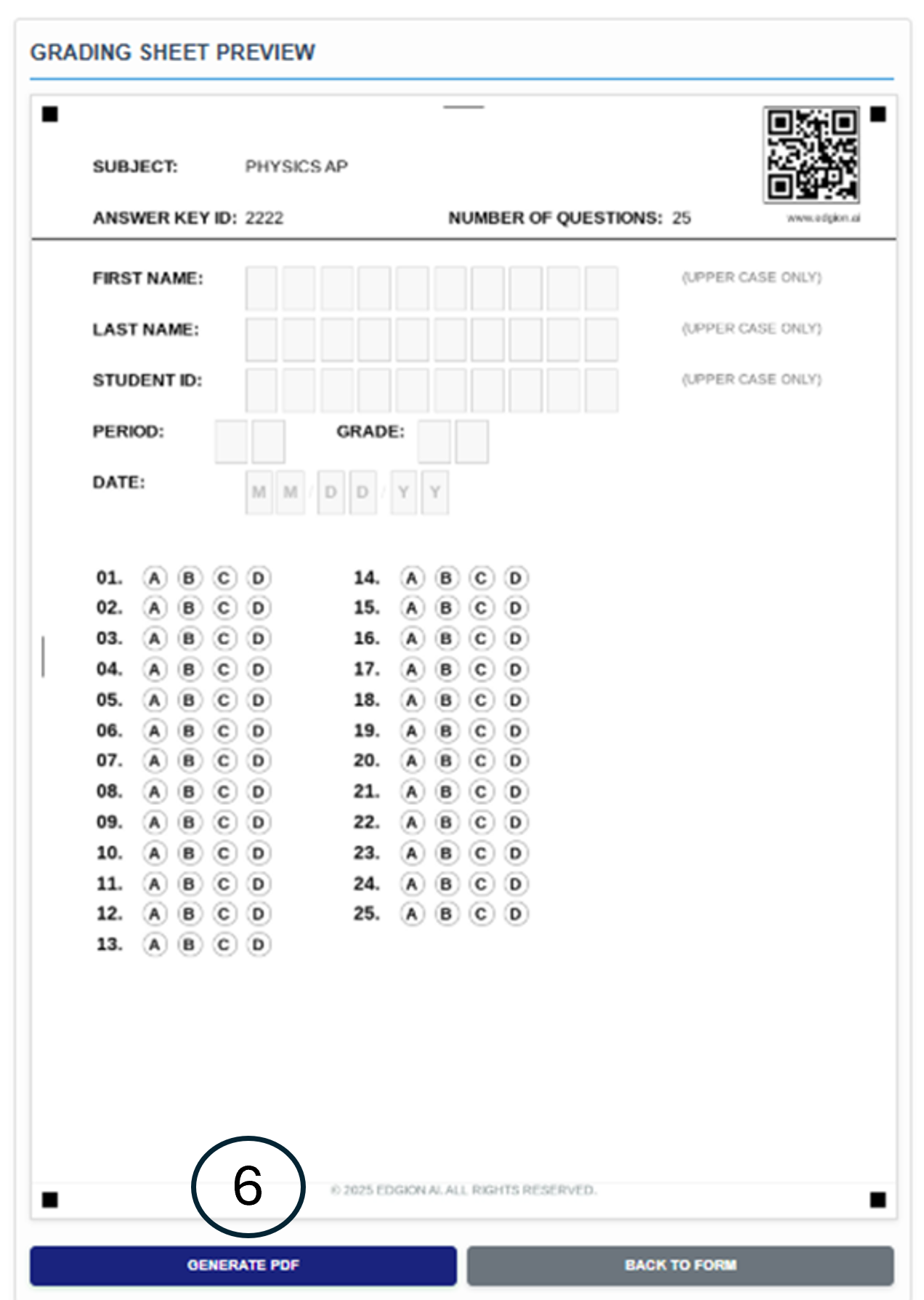
Step 6: Review the preview and click "GENERATE PDF"
Review your answer sheet preview. It will show:
- Subject name and Answer Key ID at the top
- Student information fields (First Name, Last Name, Student ID, Period, Grade, Date)
- Answer bubbles for all questions
- QR code for easy scanning identification
If everything looks correct, click "GENERATE PDF". If you need to make changes, click "BACK TO FORM".
⚠️ Important: Print on standard 8.5 × 11-inch paper and ensure all four black alignment squares at the corners are visible. These squares are essential for accurate scoring.
Download or Email Your PDF
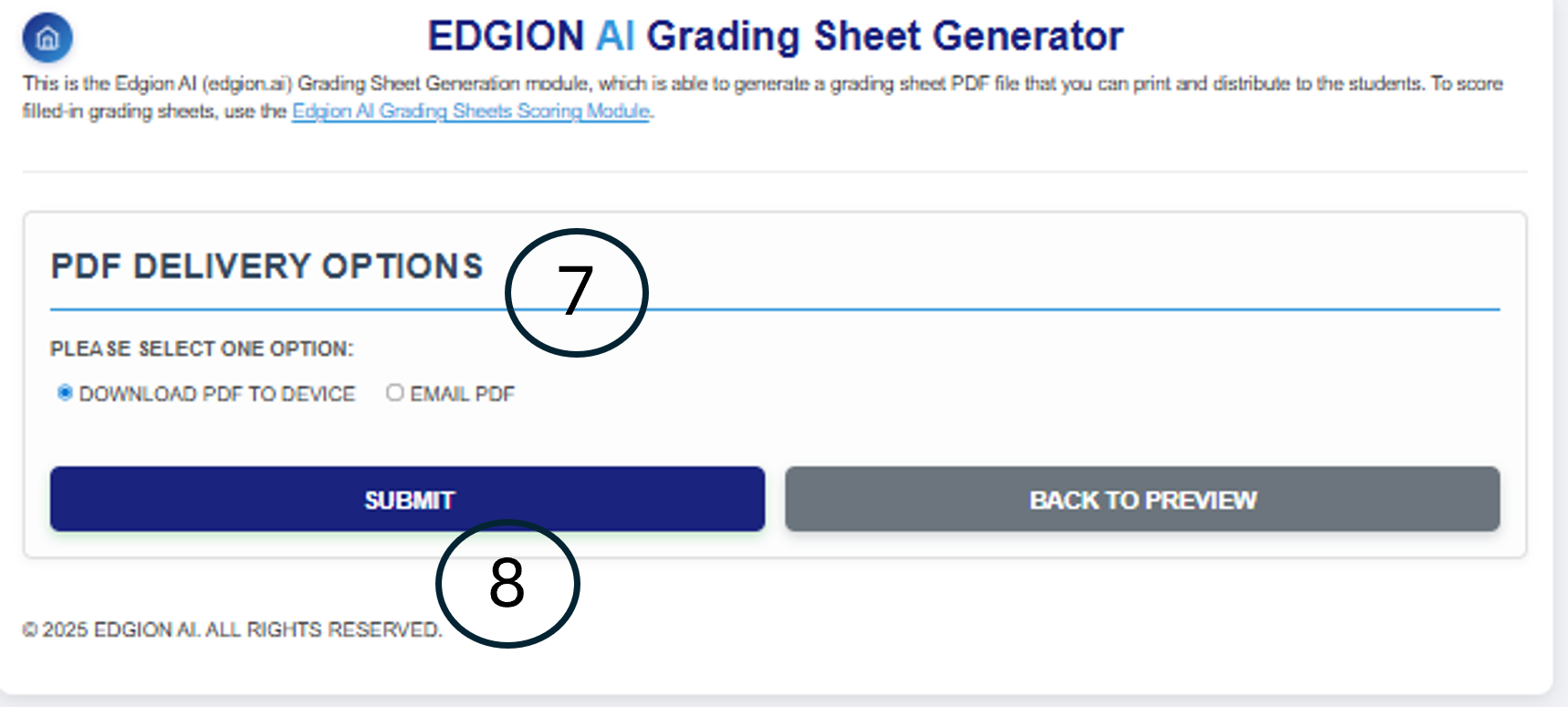
Steps 7-8: Choose delivery option and submit
Choose how you want to receive your answer sheet PDF:
- DOWNLOAD PDF TO DEVICE - Save the file directly to your computer or phone
- EMAIL PDF - Send the PDF to your email address
Click the "SUBMIT" button to download or email your answer sheet PDF.
✅ Done! Your answer sheet is ready to print and distribute to students!
What's Next?
After generating your answer sheets, here's the workflow:
- 1. Print - Print copies of the answer sheet for your students
- 2. Distribute - Hand out the sheets during your test
- 3. Collect & Scan - After the test, scan completed sheets into a multi-page PDF
- 4. Create Answer Key - Set up the answer key in the Scoring Module using the same Answer Key ID
- 5. Score - Upload the scanned PDF to get instant results
Next Tutorial: Learn how to score your answer sheets in our Scoring Module Tutorial.