Getting Started with the Scoring Module
The Edgion AI Scoring Module allows you to automatically score multiple-choice answer sheets. Simply upload a scanned PDF of completed answer sheets, and our AI will extract and score the answers based on your answer key.
What you'll learn: How to sign in, select a plan, and understand the available subscription options.
Step-by-Step Guide
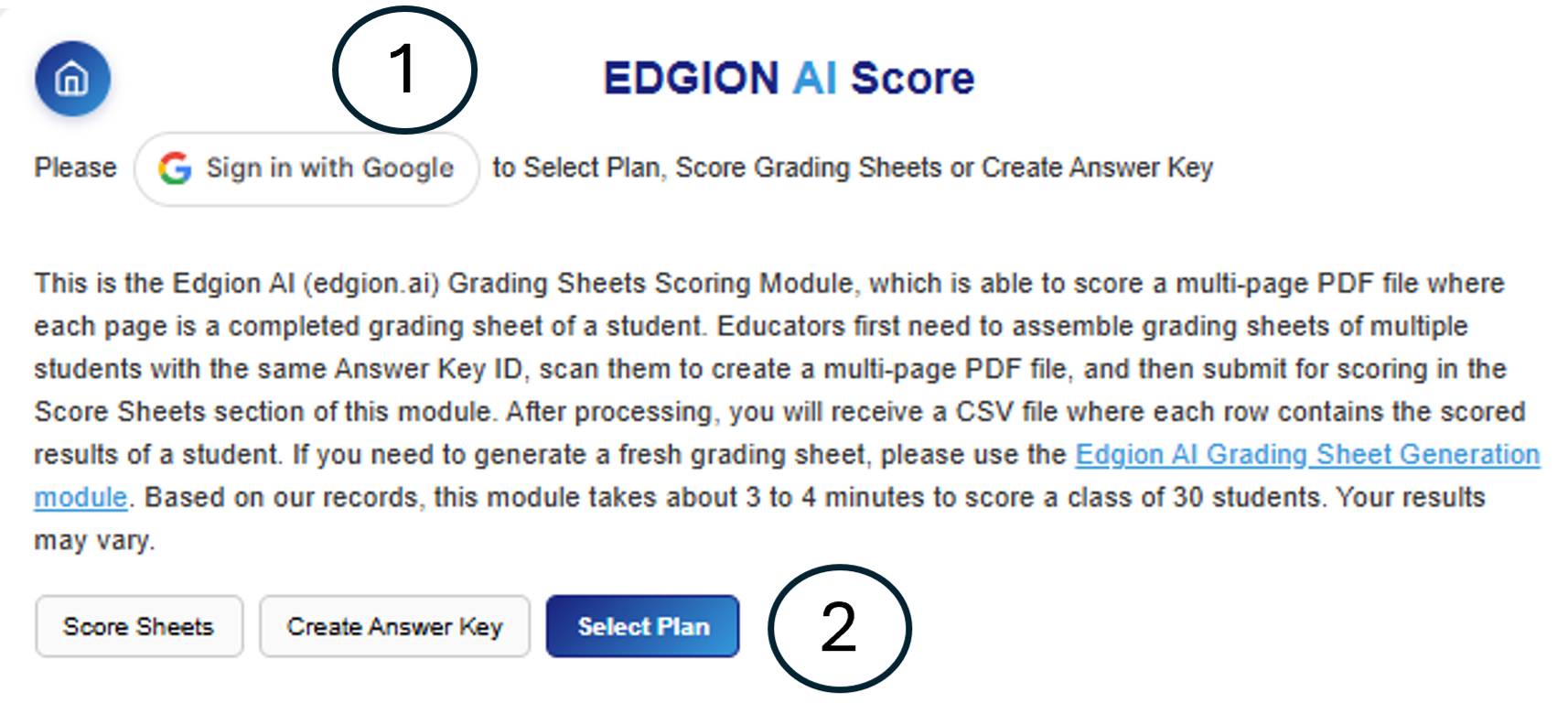
Step 1: Click "Sign in with Google" then Step 2: Click "Select Plan"
First, click the "Sign in with Google" button. Simply sign in with your existing Google account to create your Edgion AI account — no separate registration form or password needed. If your school uses Google Classroom or Google Drive, your school email should work seamlessly with our 'Sign in with Google' feature.
This gives you immediate access to all features based on your selected plan.
After signing in, click the "Select Plan" button to view available subscription options.
You'll see all available plans with their features and pricing clearly displayed.
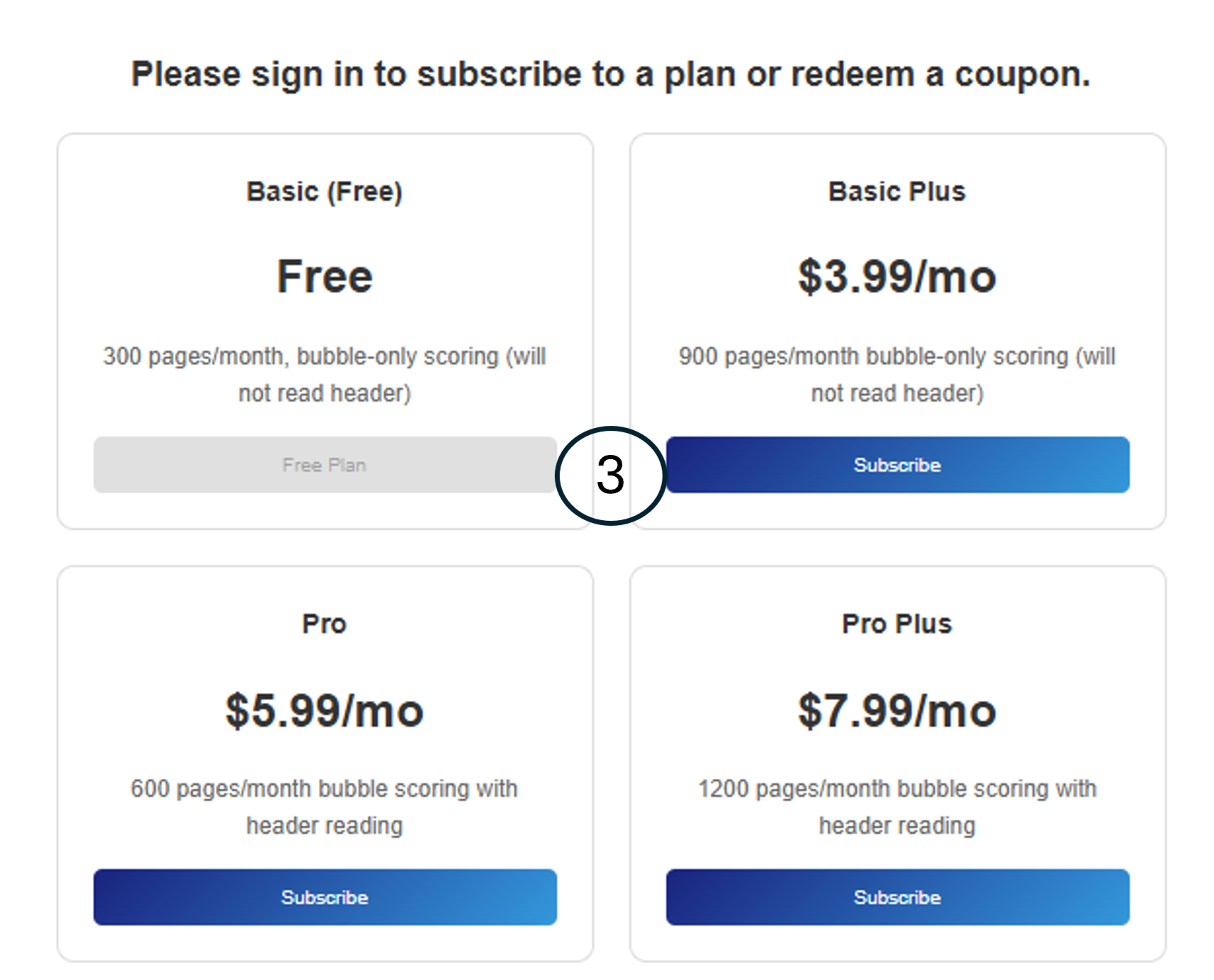
Step 3: Choose your plan - Start with Basic (Free) or upgrade anytime
Just by signing in, you can use our Basic (Free) plan. No credit card is needed to use the Basic Plan.
Feel free to start with the Basic plan and upgrade to a higher plan as needed.
✅ No credit card required to get started with the Basic plan!
💡 Tip: "Header reading" means the system can automatically read student information (name, ID, date, etc.) from the top of each answer sheet.
How to Create an Answer Key
Before you can score answer sheets, you need to create an answer key. This tells the system what the correct answers are and how many points each question is worth.
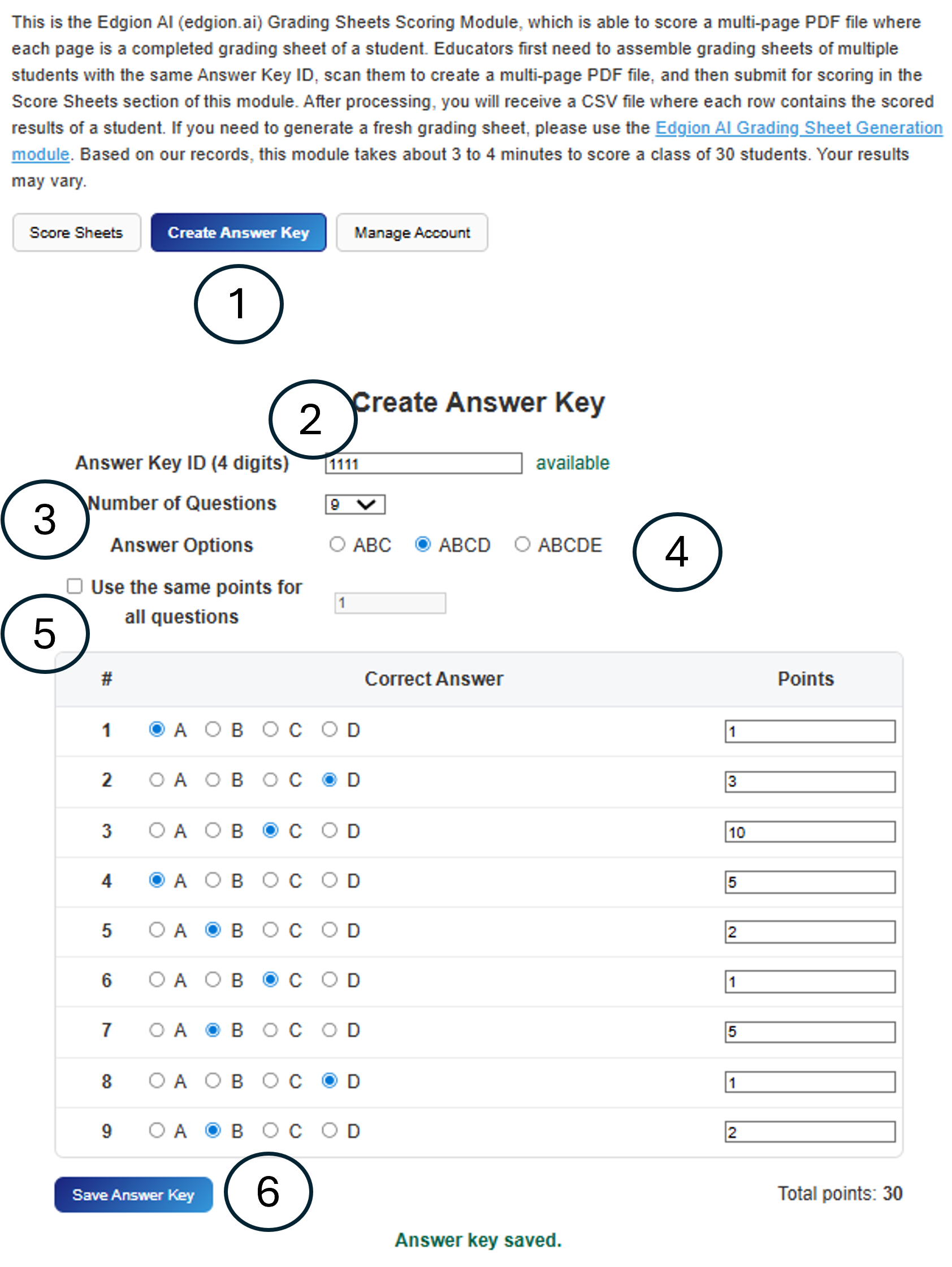
The Create Answer Key interface with all steps numbered
From the Scoring Module, click the "Create Answer Key" tab to open the answer key creation form.
Enter a 4-digit Answer Key ID (e.g., 1111). This ID will be used to match answer sheets with this answer key.
The system will show "available" if the ID is not already in use.
💡 Tip: Use a memorable ID like your course number or test date (e.g., 1234 or 0115 for January 15th).
Use the dropdown to select the number of questions on your test (5 to 50 questions).
Select the answer format for your test:
- ABC - 3 choices per question
- ABCD - 4 choices per question (most common)
- ABCDE - 5 choices per question
For each question, select the correct answer using the radio buttons and enter the point value.
You can assign different point values to different questions (e.g., harder questions can be worth more points).
Same Points Option: Check "Use the same points for all questions" if all questions are worth the same amount.
Click the "Save Answer Key" button to save your answer key. You'll see a confirmation message "Answer key saved."
The total points will be displayed at the bottom right (e.g., "Total points: 30").
✅ Done! Your answer key is now ready to use for scoring answer sheets.
How to Score Answer Sheets
Once you have an answer key set up, you can upload scanned answer sheets and get instant scores. Here's how:
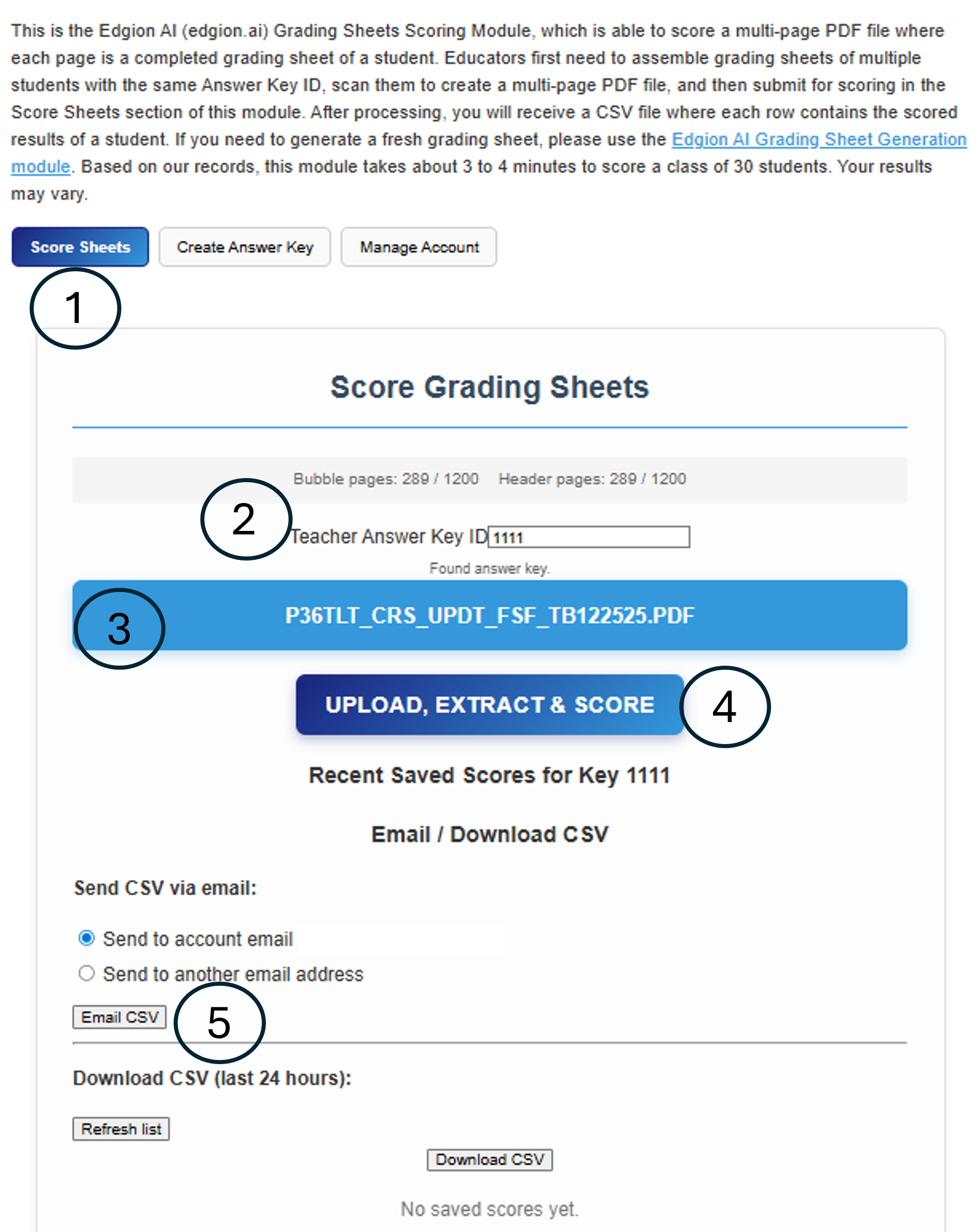
The Score Answer Sheets interface with all steps numbered
From the Scoring Module, click the "Score Sheets" tab to open the scoring interface.
You'll see your current quota usage displayed (e.g., "Bubble pages: 289 / 1200").
Enter the 4-digit Answer Key ID that matches the answer key you created earlier.
The system will confirm "Found answer key." when a valid ID is entered.
💡 Tip: Make sure the Answer Key ID matches the one printed on your answer sheets.
Click to select your scanned PDF file containing the completed answer sheets.
The filename will be displayed once selected.
PDF Requirements: Each page in the PDF should be one student's completed answer sheet. You can scan multiple students' sheets into a single multi-page PDF.
Click the "UPLOAD, EXTRACT & SCORE" button to process your answer sheets.
The system will upload your PDF, extract the bubble answers using AI, and score them against your answer key.
⏱️ Processing Time: Based on our records, scoring a class of 30 students takes about 3 to 4 minutes. Your results may vary.
After processing, you can get your results in two ways:
- Email CSV: Send results to your account email or another email address
- Download CSV: Download the results file directly to your device
The CSV file contains each student's answers, scores, and total points.
✅ Done! You've successfully scored your answer sheets. The results are ready to import into your gradebook!
You're All Set!
Congratulations! You've learned how to use all the main features of the Edgion AI Scoring Module:
- ✅ Sign in and select a plan
- ✅ Create answer keys with custom point values
- ✅ Score answer sheets by uploading scanned PDFs
- ✅ Export results via email or download
Need Help? If you have questions or run into issues, visit our FAQ page or contact support.