📋 Table of Contents
1. Overview
Edgion AI is an AI-powered grading system designed to help educators save time on multiple-choice assessments. Instead of grading each student's paper by hand, you can score an entire class in minutes.
The system is designed with typical school facilities in mind. Most schools already have large multifunction copiers that can scan multiple pages, create PDFs, and email them in seconds—which is exactly what you need to use Edgion AI efficiently.
Account Creation: Simply sign in with your existing Google account to create your Edgion AI account — no separate registration form or password needed. If your school uses Google Classroom or Google Drive, your school email will work seamlessly with our "Sign in with Google" feature. This gives you immediate access to all features based on your selected plan. If you do not select a plan, signing in automatically enrolls you in our Basic (Free) plan, and you can start grading students' multiple-choice answer sheets right away.
What You'll Need: A printer, a scanner or school copier that can create PDFs, and a pencil or dark pen for students to fill in bubbles. Since this is an online service, no software installation is required — just use your web browser.
The system consists of two modules that work together:
- Answer Sheet Generator – Creates printable answer sheets customized for your test
- Scoring Module – Reads completed answer sheets and generates results
2. Process Flow
The diagram below shows the complete workflow from generating answer sheets to receiving scored results:
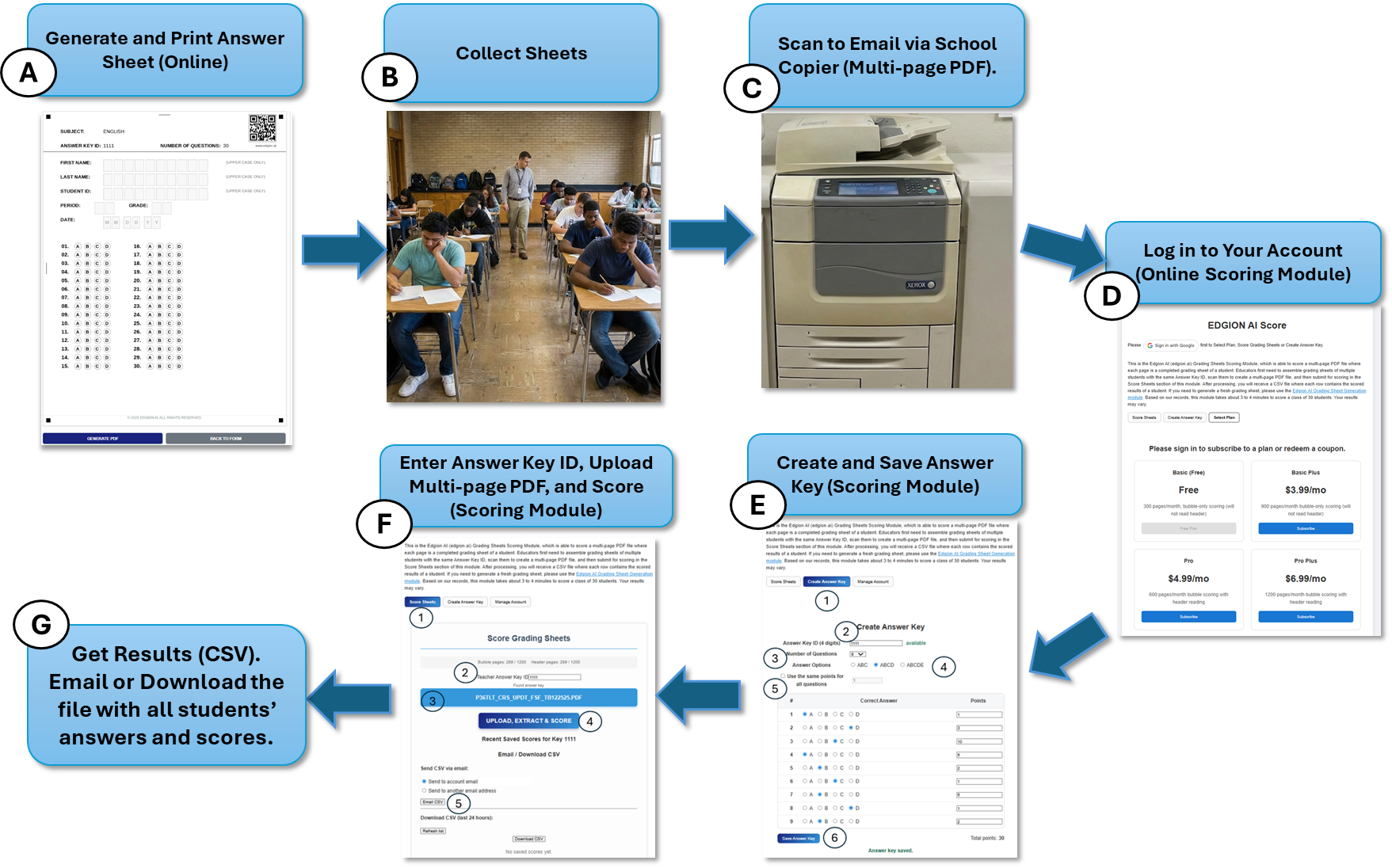
Step A: Generate and Print Answer Sheets
First, you'll create custom answer sheets for your test using our Answer Sheet Generator.
🔗 Go to the Answer Sheet Generator
Fill in the Form:
- Subject: Enter your subject name (e.g., "MATH 101", "BIOLOGY CHAPTER 5")
- Number of Questions: Select 5 to 50 questions
- Answer Options: Choose ABC (3 options), ABCD (4 options), or ABCDE (5 options)
- Answer Key ID: Enter a unique 4-digit code (e.g., "1234"). This links the answer sheet to your answer key.
Generate & Print:
- Click "Generate Preview" to see your answer sheet
- Click "Generate PDF" to download or email the PDF
- Print enough copies for your class
⚠️ Important: Print on standard 8.5 × 11-inch paper and ensure all four black alignment squares at the corners are visible. These squares are essential for accurate scoring.
Step B: Distribute and Collect
Distribute to Students:
Hand out the printed answer sheets to your students along with your test questions. Students should:
- Fill in their name, student ID (or a temporary ID you assign for privacy), and other header information
- Fill in the bubbles completely using a pencil or dark pen
- Avoid stray marks, erasures should be clean
Collect & Organize:
After the test, collect all answer sheets. Make sure they are:
- All from the same test (same Answer Key ID)
- Oriented the same direction (not upside down)
- Free of major wrinkles or tears
Step C: Scan to Email via School Copier
Scan all the answer sheets into a single multi-page PDF file. You can use:
- School Multifunction Copier (Recommended): Use the document feeder to scan all pages at once. Most school copiers can create a multi-page PDF and email it directly to you in seconds.
- Flatbed Scanner: If a document feeder is not available, most scanners can scan multiple pages into one PDF, though this requires scanning one page at a time.
Step D: Log in to Your Account
Access the Scoring Module and sign in to your Edgion AI account.
🔗 Go to the Scoring Module
Click the "Sign in with Google" button to access your account. If this is your first time, signing in with your Google account automatically creates your Edgion AI account — no separate registration form or password needed. If your school uses Google Classroom or Google Drive, your school email should work seamlessly with our "Sign in with Google" feature.
Select a Plan:
To view available subscription options, click "Manage Account" (after signing in) or "Select Plan" (if you haven't signed in yet). You'll see all available plans with their features and pricing clearly displayed.
Just by signing in, you can use our Basic (Free) plan — no credit card needed. Feel free to start with the Basic plan and upgrade to a higher plan as needed.
Step E: Create and Save Answer Key
Before scoring, you need to create an answer key in the system so it knows the correct answers.
Create the Answer Key:
- Click the "Create Answer Key" tab
- Enter the same Answer Key ID you used when generating the sheets
- Select the number of questions and answer options
- Enter the correct answers for each question (A, B, C, D, or E)
- Optionally, assign point values to individual questions
- Click "Save Answer Key"
Step F: Upload and Score
Now you're ready to score your class!
Upload Your PDF:
- In the Scoring Module, go to the "Score Sheets" tab
- Enter the Answer Key ID for this test
- Click "Choose File" and select your scanned PDF
- Click "Upload, Extract & Score"
Wait for Processing:
The AI will analyze each page of your PDF. Processing time depends on the number of pages:
- 15 students: ~45 seconds
- 30 students: ~3-4 minutes
Step G: Get Results
Once processing is complete, you'll receive a CSV file with results for all students — one student per row.
Review Results:
The results show:
- Student Name & ID (if your plan includes header reading)
- Score for each question (showing points earned or 0 for incorrect answers)
- Total Score (number correct out of total)
- Percentage
Download or Email CSV:
- Click the "Download CSV" button to save the file
- Or use the "Email CSV" option to send results to yourself or another email address
- Open the CSV file in Excel or Google Sheets
Ready to Get Started?
Create your first answer sheet and see how easy scoring can be.
Generate Sheets Start Scoring See Tutorials